Do I need an account to use it? +
Mostly no. The Materials Library works with no account: open it on this device right away, and sign in later to save your work to the cloud. Four tools keep everything on your account, so they ask you to sign in first: the Cut List Optimizer, StackDesign, Shop Details, and the Hardware Library. The AI Designer also needs a sign-in, so it can read your saved design. Sign-in is free, with Google or email, in about 30 seconds, and while the open beta runs a new account gets the whole product free. Everything else, the calculators, the Gola and hinge tools, the photo tool and all the guides, works right away with no account. The full kitchen Designer needs a sign-in too, and during our open beta it is free for everyone who has one.The full kitchen Designer needs a sign-in too, and it comes with a CabDesign plan of its own.
What is the AI Designer? +
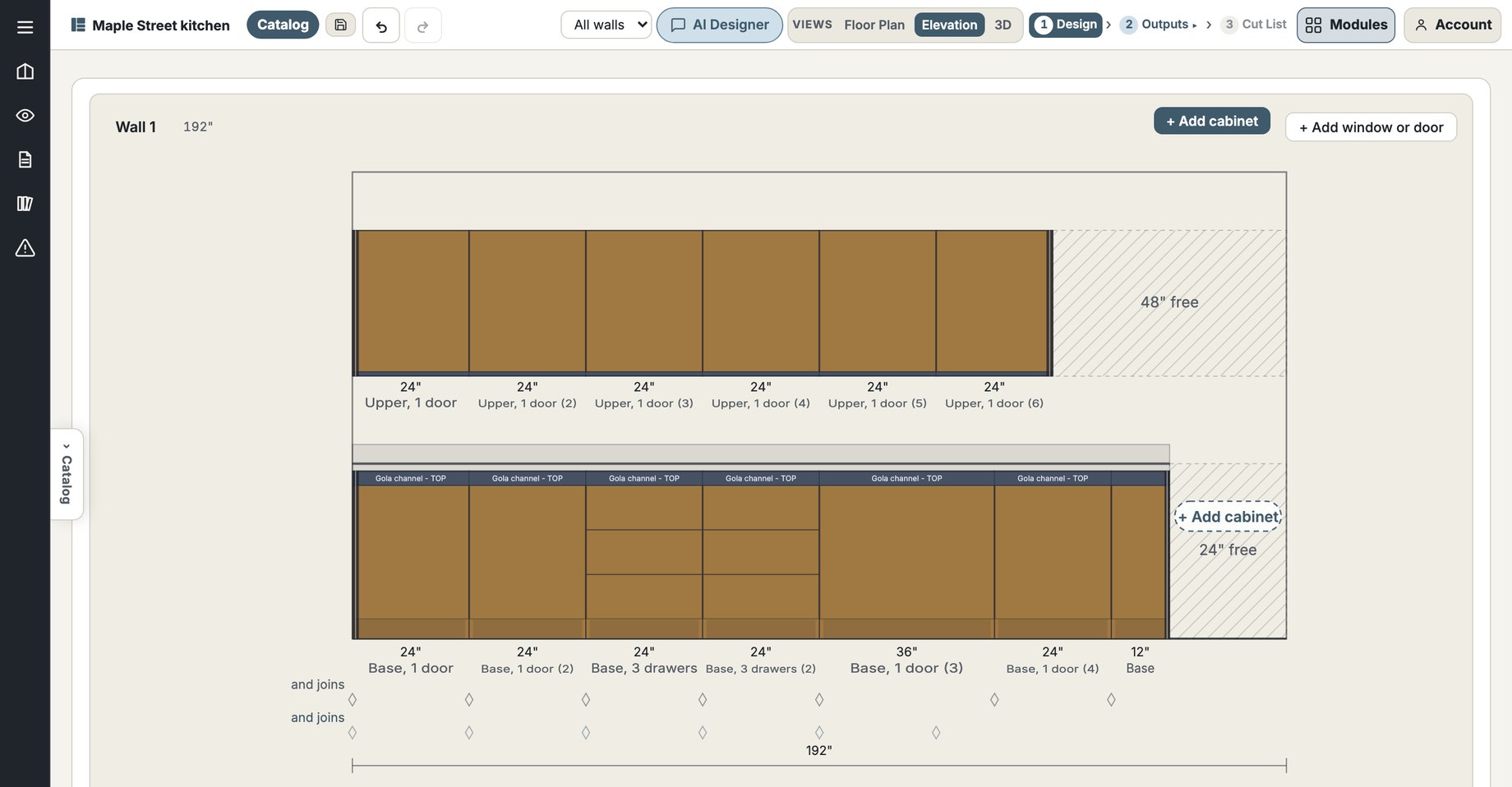
An assistant built into the Designer page. It knows every tool in CabDesign, and once you sign in it can read your saved design, so you can ask it questions in plain English: what a part should measure, how to set something up, or what to do next. It is an early preview today, on its way to planning the whole job with you.
Where does my work live? +
Projects from the signed-in tools are saved to your account in the cloud: sign in on any device and your work is there. The free calculators keep their settings in your browser, on the machine you used them on. Saving costs nothing while the open beta runs; the pricing page says what it will cost once the beta ends.
Does it handle saw kerf and edgebanding? +
Yes. The optimizer deducts the saw kerf between parts and the edgebanding thickness from each edgebanded edge, so the size on the cutting diagram is the size you actually cut.
What is grain matching? +
When a row of doors should read as one continuous piece of timber, you group them and the optimizer keeps them on one board, in the order they sit on the cabinet face. You set the columns and stacking order, or drag them to match.
Is it for frameless or face-frame? +
It is built around European frameless (32mm) and Gola handleless cabinets, the way the studio builds. The cut list and optimizer work for any panel parts you give them.
Still stuck, or found something broken? Email
support@cabdesign.app and a person answers.